


A Step-by-Step Onboarding Guide
Setting up the Secura app is quick and simple, and doing it properly ensures you’re fully protected from the moment you activate your service.
This step-by-step guide walks you through exactly what to expect when downloading, subscribing, and setting up the app for the first time.
Whether you’re new to Secura or helping someone else get started, this guide will help you complete the onboarding process with confidence.
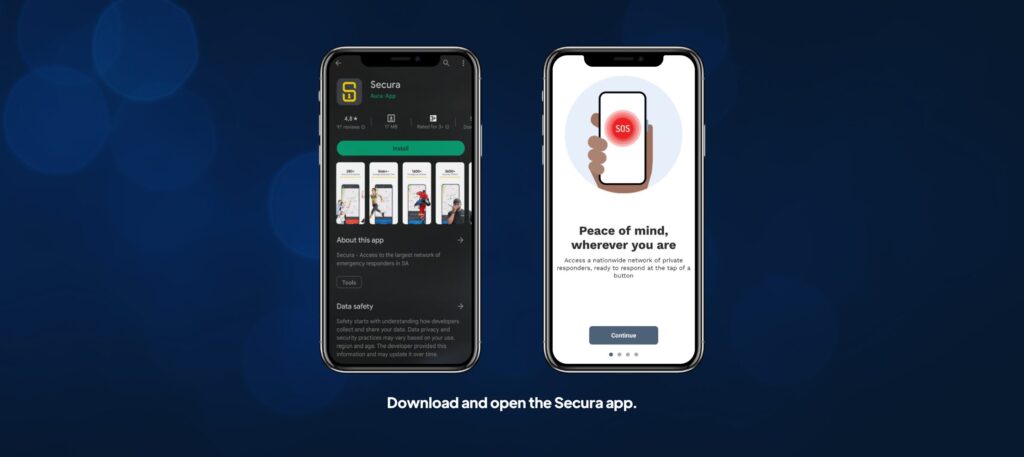
Step 1: Download and open the Secura app
Start by downloading the Secura app from your preferred app store (Apple App Store, Huawei App Gallery or Google Play Store).
Once installed, open the app and follow the welcome prompts to begin the setup process. The app will guide you through each step, so there’s no guesswork involved.
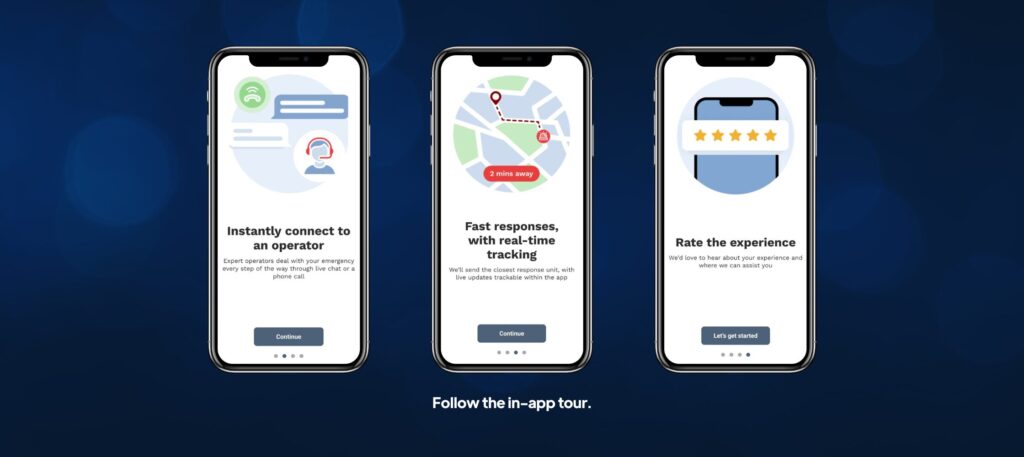
Step 2: Follow the in-app tour
After opening the app, you’ll be taken through a short in-app tour designed to show you how Secura works. This tour highlights:
- Peace of mind, wherever you are
- Instant connection to an operator
- Fast response with real-time tracking
You will be prompted to rate the app at a later stage, once you’ve had time to explore the app and experience the service.
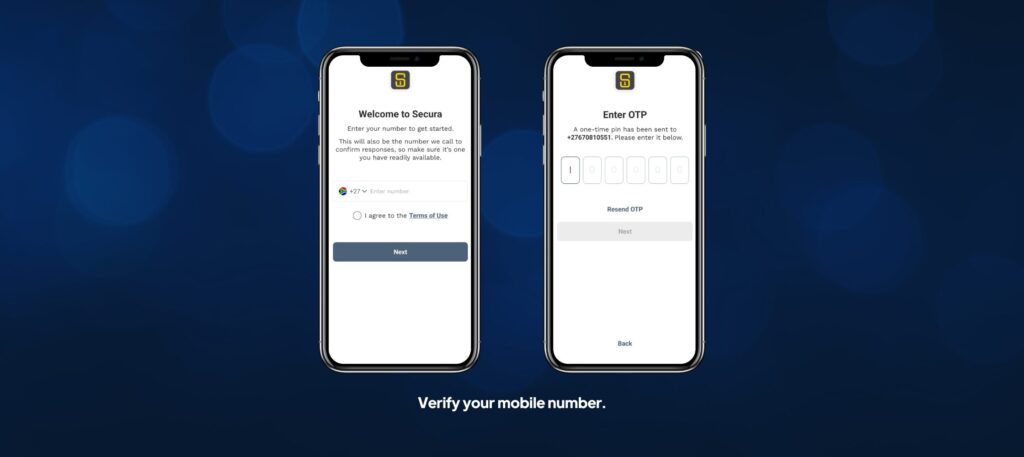
Step 3: Verify your mobile number
Next, you’ll be asked to enter your mobile phone number and agree to the terms and conditions.
Secura will send you a one-time PIN (OTP) via SMS. Enter the OTP in the app to verify your number and continue.
This step is important, as your mobile number is a key identifier during an emergency.
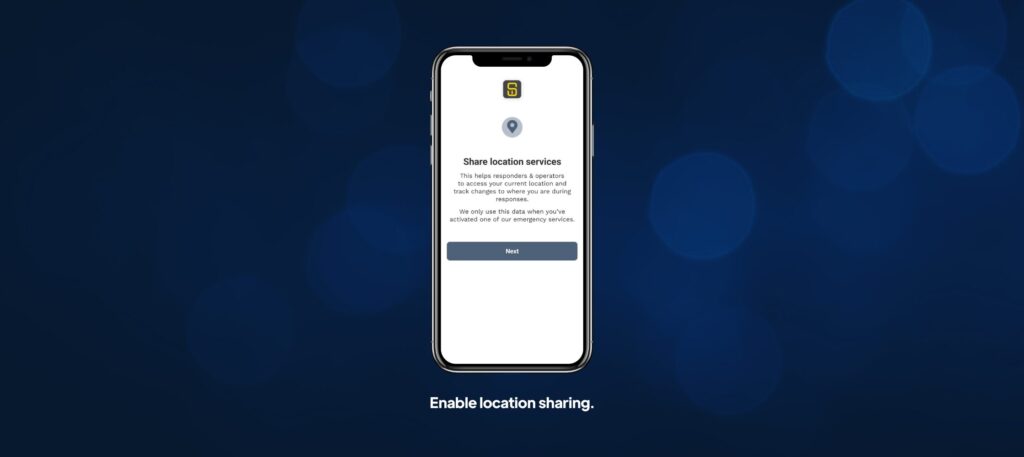
Step 4: Enable location sharing
The app will then explain how location sharing works and prompt you to enable it.
Location sharing allows Secura to accurately identify where you are when an alert is triggered, ensuring responders can reach you as quickly as possible.
For the best experience and fastest response times, make sure location permissions are enabled.
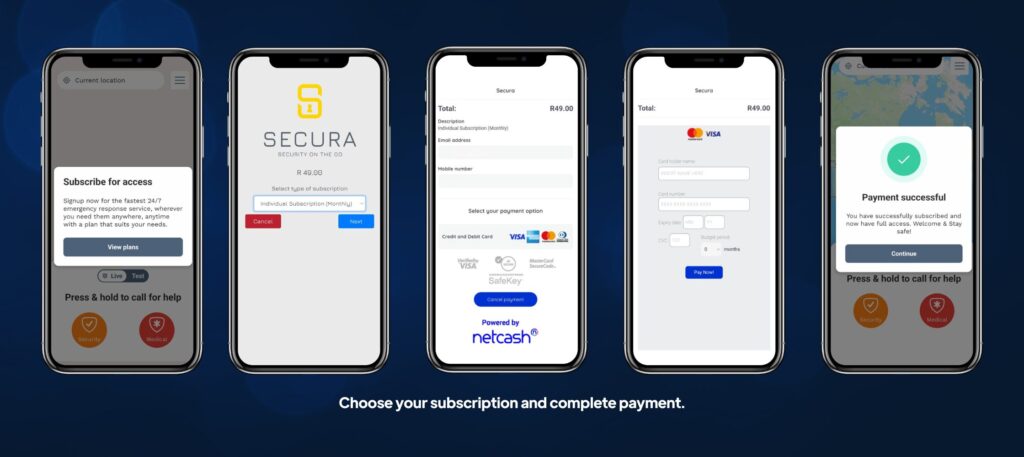
Step 5: Choose your subscription and complete payment
Once your account is verified, you’ll be able to view Secura’s available subscription options. From here, you can:
- View the different plans
- Select your preferred subscription
- Choose a payment method
- Complete payment securely within the app
After payment is successful, your subscription is activated, and Secura’s services are ready to use.
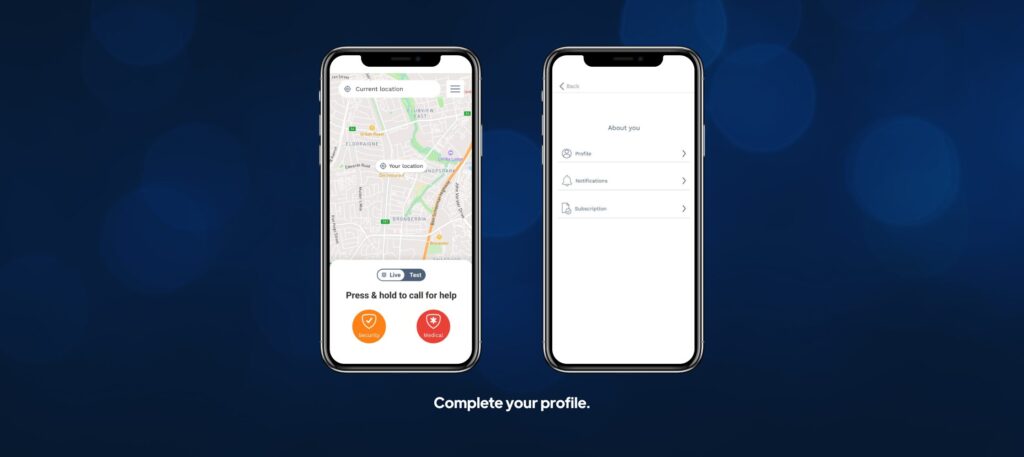
Step 6: Complete your profile (don’t skip this step)
After subscribing, you’ll be taken to the main app screen. From here, navigate to:
Menu > About You > Profile
This is where you should complete the rest of your personal details, including emergency contacts and any relevant information.
Completing your profile is critical. In an emergency, accurate and up-to-date details help responders assist you faster and more effectively.
Taking a few extra minutes now can make a meaningful difference later.

You’re now active and protected.
Once your profile is complete, you’re fully onboarded and ready to use Secura.
We recommend familiarising yourself with the app layout and keeping your details up to date in case of any changes. Secura is designed to support you when it matters most — and it works best when your setup is complete.